Quick Answer: Can VLC Repair Damaged Videos?
Yes — VLC Media Player can repair certain damaged videos, especially AVI files, using its built-in auto-repair feature. For MP4 or MOV files, VLC doesn’t directly repair them, but you can fix many issues by converting (re-encoding) the video.
In short:
- ✅ Works well for minor corruption
- ✅ Best for AVI files (auto-fix)
- ⚠️ Limited for MP4/MOV (use conversion workaround)
- ❌ Not suitable for severely damaged videos
Common Signs of a Damaged Video File
If your video shows any of these issues, it may be corrupted:
- Video not playing at all
- Black screen but audio works
- Audio and video out of sync
- File opens but freezes or lags
- Error messages while opening the file
What Causes Video Corruption?
Understanding the cause helps you pick the right fix:
- Interrupted file transfer (USB/SD card removal)
- Incomplete downloads
- System crash during recording or saving
- Bad sectors on storage devices
- Codec or format incompatibility
Before You Start: Basic Requirements
Before attempting repair:
- Install the latest version of VLC Media Player
- Keep a backup copy of the original damaged file
- Ensure enough storage space for converted files
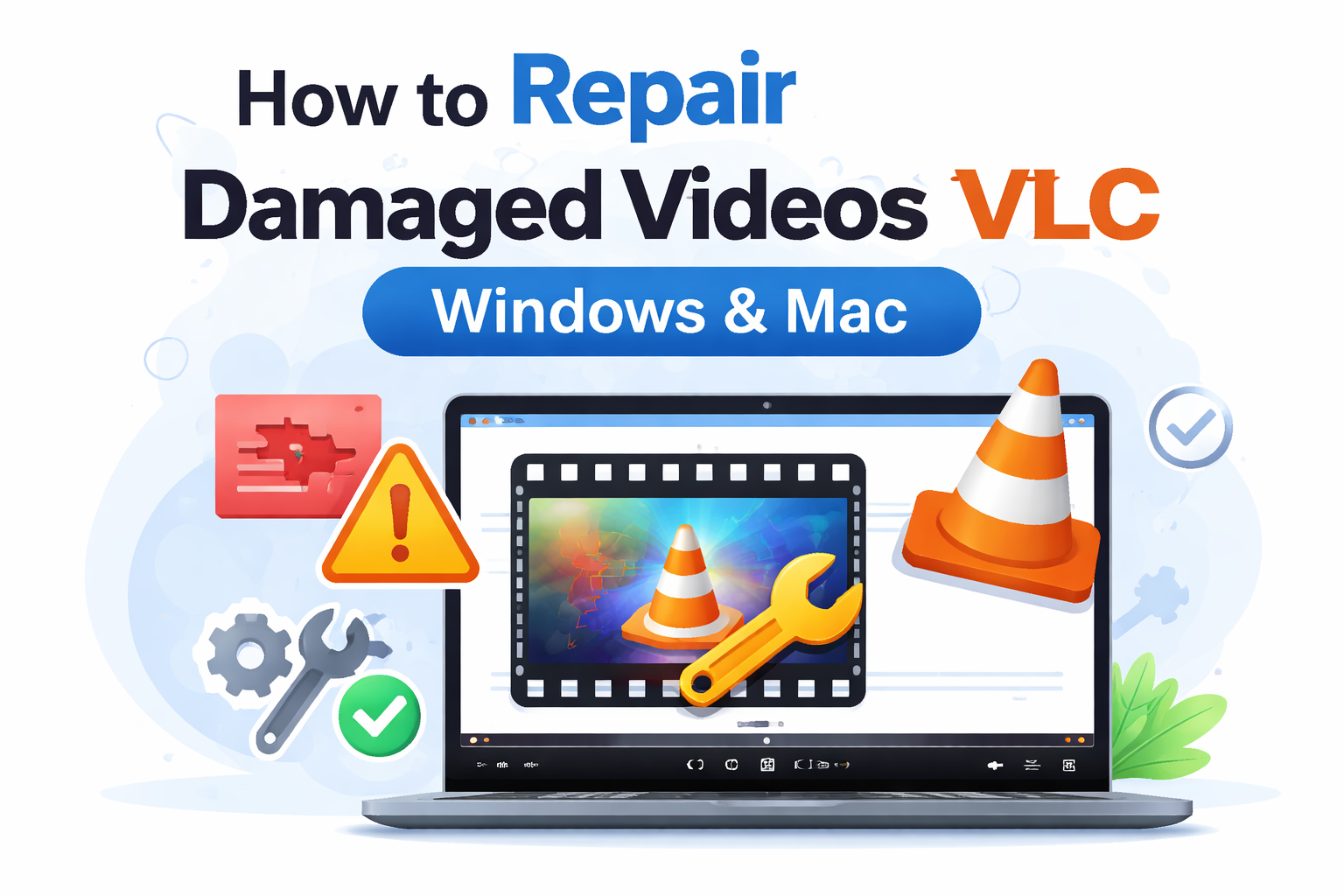
How VLC Media Player Helps to Repair Damaged Videos on Windows & Mac
Method 1: Repair AVI Files Using VLC (Automatic Fix)
This is the easiest and most effective method—but it works only for AVI files.
Steps to Enable AVI Repair Feature
- Open VLC Media Player
- Click Tools > Preferences
- Select Input / Codecs
- Find “Damaged or incomplete AVI file”
- Choose Always Fix
- Click Save
Play the Corrupted AVI File
- Open the damaged AVI file in VLC
- VLC will automatically attempt to repair it during playback
Best for: Minor corruption like index or playback errors
Method 2: Convert Video Format to Fix Corruption
If your video is MP4, MOV, or not repairing, this method often works.
Why This Works
Conversion (re-encoding) rebuilds the video structure, fixing broken frames, metadata, or codecs.
Steps to Convert & Repair Video
- Open VLC
- Go to Media > Convert/Save
- Click Add and select your damaged video
- Click Convert/Save
- Choose output format (MP4 recommended)
- Select destination file
- Click Start
Best Settings for Repair
- Use H.264 codec (widely compatible)
- Keep original resolution and frame rate
- Avoid unnecessary compression
Best for: MP4, MOV, and partially corrupted files
Method 3: Fix Video Playback Issues via VLC Settings
Sometimes the video isn’t corrupted—it’s just not playing properly due to settings.
Adjust Video Output Settings
- Go to Tools > Preferences > Video
- Change output (try DirectX / OpenGL)
Disable Hardware Acceleration
- Go to Input/Codecs
- Disable hardware-accelerated decoding
Increase File Caching
- Increase caching value (e.g., 300ms → 1000ms)
- Helps reduce lag and buffering
Best for: Lagging, stuttering, or glitchy playback
How to Repair MP4 and MOV Files Using VLC (Workaround)
Since VLC doesn’t directly repair MP4/MOV:
- Convert MP4/MOV → AVI
- Enable AVI auto-repair
- Play to fix the file
- Convert back to MP4
This workaround can fix index and playback issues
Limitations of Using VLC for Video Repair
VLC is useful, but not a complete repair solution:
- Cannot fix severely corrupted or broken files
- No deep-level recovery of missing data
- Limited format-specific repair features
- No repair preview or diagnostic tools
When VLC Is Not Enough (Alternative Solutions)
You may need professional tools if:
- Video doesn’t open at all
- File size looks correct but won’t play
- Important metadata is missing
- Video is from DSLR, drone, or GoPro
In such cases, dedicated video repair software performs advanced reconstruction.
Tips to Prevent Video Corruption in Future
Avoid dealing with damaged files again:
- Always safely eject USB/SD cards
- Avoid interrupting file transfers
- Keep backups of important videos
- Use reliable storage devices
- Maintain system health (avoid crashes)
Conclusion
VLC Media Player is a quick, free, and beginner-friendly tool to repair damaged videos—especially for minor issues like playback errors or corrupted indexes.
- Use AVI auto-repair for quick fixes
- Use conversion method for MP4/MOV files
- Adjust settings for playback issues
For severe corruption, consider advanced tools—but for most everyday problems, VLC is often enough to get your video working again.