The Windows CMD, i.e., Command Prompt, utility might look plain and old-school, but its black-and-white screen has much more to offer. Behind that blinking cursor is a surprisingly powerful and entertaining tool. If you are a Windows 10 or 11 user, Command Prompt has several hidden surprises that can make you feel like a tech wizard.
If you’re new to CMD, this guide will walk you through some cool things you can do in Command Prompt. By the end, you’ll definitely be much more confident navigating the Command Prompt like a pro. Let’s get started!
What is Command Prompt?
Windows in-built Command Prompt utility is a command-line interpreter that lets you execute text-based commands to control and manage your system. Instead of clicking icons and menus, the CMD text-based interface allows you to perform various tasks. Though CMD is widely used by IT professionals and experts, it also allows beginners to enjoy experimenting with it.
Here’s quick steps to open Command Prompt on your Windows PC:
- Firstly, press the Windows + R keys to launch the Run prompt.
- Type CMD in the search box and press the Enter key.
- Now, when CMD opens on your screen, you’re ready to explore.
Fun and Cool CMD Commands for Beginners
If you are a beginner and don’t have much experience with CMD, don’t worry, we will help you in exploring some really fun CMD commands. Let’s jump into some entertaining and useful commands you can try right away.
01: Watch Star Wars in CMD
Ever wondered if you can really watch Star Wars? No, but it’s possible. You can use the following command in CMD to watch Star Wars in text form:
- Open Command Prompt.
- Now, type the command: “telnet towel.blinkenlights.nl”.
- Press Enter and wait till the command is executed.
Note: This command works only if Telnet is enabled on your PC. If not, you can turn it on in:
Control Panel > Programs > Turn Windows features on or off > Enable Telnet Client.
02: Change CMD Screen Colour
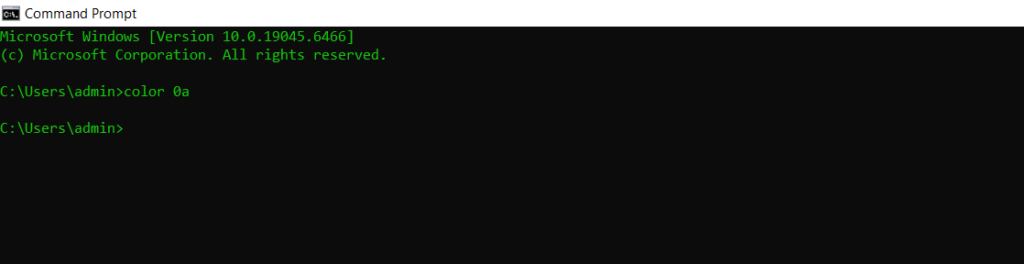
Yes, it is possible to configure your CMD window and command text colours. If you want your screen to look like something out of The Matrix, try this command:
- color 0a
- dir /s
This command will change your screen and text colour to something like below:
Here are some more colour combinations that you can try:
color 0A → Black background, light green text (Matrix style)
color 1F → Blue background, bright white text
color 4E → Red background, light yellow text
color F0 → Bright white background, black text
03: Listen Audio from CMD
CMD provides a command which can speak anything for you. For this, you can copy and paste the following commands in your CMD window:
- echo Set sapi=CreateObject(“sapi.spvoice”) > speak.vbs
- echo sapi.Speak “Hello, welcome to Command Prompt!” >> speak.vbs
- start speak.vbs

Once you run the above CMD command for beginners, your computer will speak the message aloud using Windows’ built-in voice engine.
04: Check Your Wifi Password
If you’ve forgotten your WiFi password, then the Windows CMD utility can help you easily restore it. For this, you can run the following command:
netsh wlan show profile
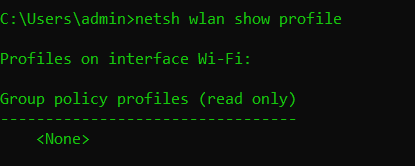
This will display all your WiFi connections. Select your Wi-Fi name, then type:
netsh wlan show profile name=”WiFiName” key=clear
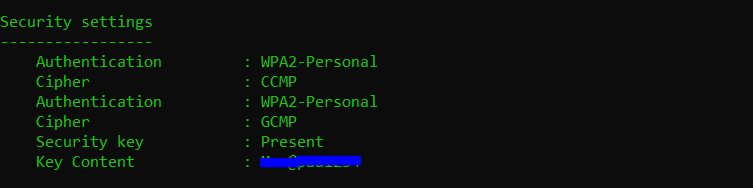
Locate Key Content – it contains your saved Wi-Fi password.
05: Generate a Random Number
You can use CMD to generate a random number instantly on your screen. For this, type the following command in CMD:
echo %random%
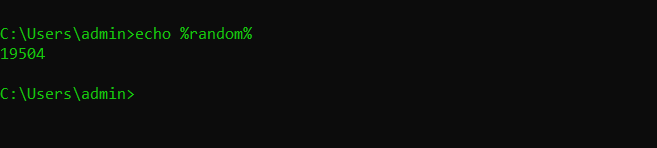
This will give you a random number every time you execute this command. The numbers usually range between 0 and 32767.
06: Create Your Own Command
You can personalise CMD by creating simple aliases using batch files. For example, create a file called hello.bat with:
@echo Hello, You are awesome!
Place it in a folder included in your PATH variable.
Now typing hello in CMD will display your custom message.
07: Compare Two Files
If you want to compare two text files, try the following command:
fc file1.txt file2.txt
It shows differences line by line.
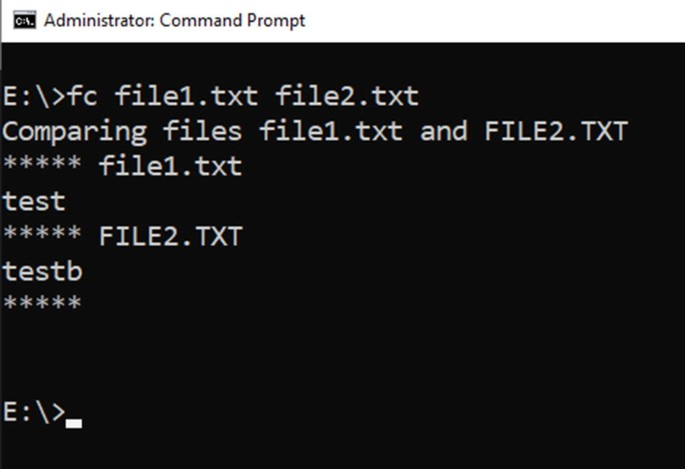
Additional Tip: Quick Beginner Safety Guide
If you are a beginner, keep the following rules in mind before you initiate any of the above tips:
- Don’t run unknown commands from random websites.
- Avoid deleting system files.
- Be cautious with taskkill and shutdown commands.
- Don’t prank others on shared computers.
Wrapping Up
If you are looking for some amazing, cool tricks to enjoy CMD, then the above methods can definitely be a crazy try. Command Prompt isn’t just for programmers or IT experts. It’s a playground for curious beginners who want to explore new things. From watching Star Wars in ASCII to making your computer talk, CMD offers fun, educational, and practical tools all in one simple interface.
The blinking cursor isn’t just a relic of the past. It’s an invitation to explore.