You deleted a folder by mistake. Your SD card now says “format disk.” A Windows update wiped your Pictures folder. It happens to everyone, and the good news is simple: deleted photos usually stay on the drive until new data overwrites them.
That gives you a window to act. The right free photo recovery software can scan the drive, find those leftover files and bring them back.
The catch? Most “free” tools are free trials in disguise. Some let you recover only 100 MB. Others cap you at 500 MB or 1 GB. A few are truly unlimited but look like they were built in 2005.
This guide cuts through that. We compared five of the best free photo recovery tools for Windows and put the real limits side by side, so you know exactly what you get before you install anything.
Best Free Photo Recovery Software at a Glance
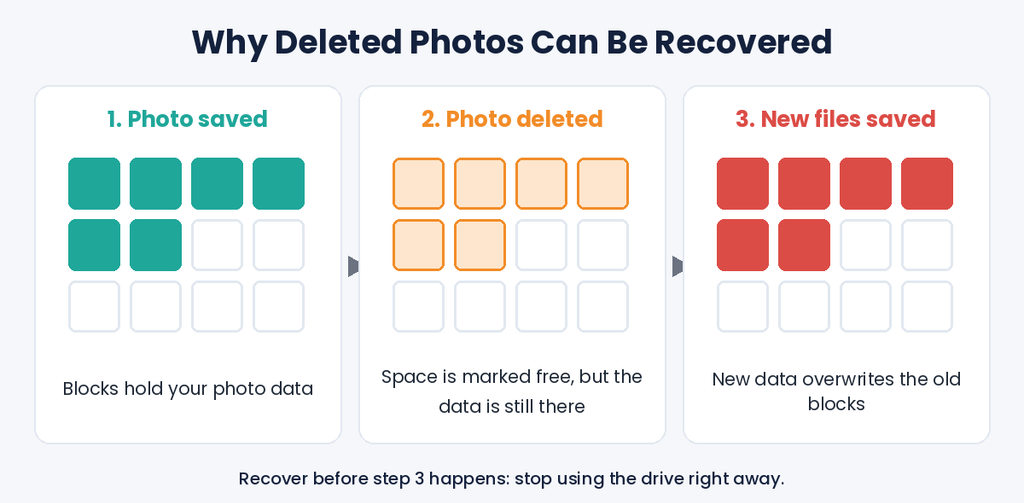
Stop using the drive right now. Every new photo, download or app install can overwrite the files you want back. Don’t install recovery software on the same drive you are recovering from.
Deleted photos stay on the drive until new data overwrites them, which is why acting fast matters.
The biggest difference between these tools is the free limit. Check this table first, then read the detailed reviews below.
| Tool | Free recovery limit | Photo preview | Keeps file names | Camera RAW support | Ease of use | Paid upgrade from |
| Disk Drill | 100 MB (Windows) | Yes, full preview | Yes (when file system is intact) | Excellent (CR2, CR3, NEF, ARW, RAF, DNG and more) | Very easy | $89 |
| PhotoRec | Unlimited | No | No | Very good (480+ extensions) | Hard | Free forever |
| Recuva | Unlimited | Basic (common formats) | Often | Limited | Easy | $24.95 |
| EaseUS Data Recovery Wizard Free | Up to 2 GB | Yes | Usually (when file system is intact) | Good | Very easy | $69.95 |
| Stellar Data Recovery Free | 1 GB (25 MB per file) | Yes | Usually (when file system is intact) | Moderate | Easy | Paid tiers vary |
Free limits and prices come from each developer’s official page as of September 2026. Vendors change them often, so double-check before you rely on a free cap.
What the table tells you:
- Need to recover a whole card or folder for $0? Only PhotoRec and Recuva have no cap.
- Need the best chance on a formatted SD card? Disk Drill and PhotoRec lead, because both use strong signature scans.
Need a few hundred photos back with names intact? EaseUS Free or Stellar Free fit best, thanks to their larger free limits.
What Features We Check For These Free Photo Recovery Tools
We did not rank by brand name or marketing claims. Each tool earned its spot on six practical points:
- Real free limit: How many photos can you actually save without paying? A 100 MB cap holds about 20 to 30 phone photos. A 1 GB cap holds roughly 250 to 300.
- Photo format support: Can it find JPG, PNG and HEIC files? What about camera RAW files like CR3 (Canon), NEF (Nikon) and ARW (Sony)?
- Scan types: A quick scan finds recently deleted files. A deep or signature scan finds photos on formatted or corrupted cards.
- Preview before recovery: Recovered photos often get generic names like IMG_4821. A preview lets you pick the right ones and skip broken files.
- Ease of use: Can a non-technical person finish a recovery in under 15 minutes?
- Safety: Does it scan in read-only mode? Is it available from an official, malware-free source?
We checked every feature and limit against the developer’s official documentation. For real-world performance, we relied on published hands-on tests by independent reviewers and on experiences users shared in recent data recovery forum threads.
A note on “free”: Only PhotoRec is fully free and open source. Recuva’s free edition has no cap. The other three are freemium: you can scan and preview everything, but you can save only a set amount.
5 Best Free Photo Recovery Software for Windows
1. Disk Drill: Best Photo Recovery Software for Windows Overall
Best for: Formatted SD cards, camera RAW files and anyone who wants the easiest workflow.
Disk Drill by CleverFiles is the most polished tool on this list. You pick a drive, click one button and watch photos appear in a preview grid while the scan runs. The latest release is version 6.3, which runs on 64-bit Windows 10 and 11, including ARM PCs.
Its standout feature for photographers is Advanced Photo Recovery, a scan mode built for unaltered photos from cameras and drones. It appears when you scan an external drive, memory card or disk image.
Key features
- Scans internal drives, SSDs (if TRIM is off), USB sticks, SD and CF cards, and cameras
- Supports a long list of camera RAW formats: CR2 and CR3 (Canon), NEF (Nikon), ARW (Sony), RAF (Fujifilm), RW2 (Panasonic), ORF (Olympus), DNG and GoPro GPR
- Shows a recovery chance rating so you know which files will open
- Lets you start recovering before the scan finishes
- Creates a byte-level backup of a failing card so you scan the copy, not the damaged card
- Works with NTFS, FAT32, exFAT, ReFS, APFS, HFS+ and ext4
Free version limits
- Recover up to 100 MB for free on Windows
- Scan and preview are unlimited, so you can see every recoverable photo before you pay
- Free data protection tools (Recovery Vault, S.M.A.R.T. monitoring) stay free forever
Pros
- Cleanest, most beginner-friendly interface in the category
- Top-tier RAW photo support
- Preview during scan saves a lot of time
- Read-only scanning keeps your card safe
Cons
- 100 MB covers only a handful of RAW files (one 45 MP RAW can weigh 50 MB)
- Paid Pro license is pricier than Recuva
- iPhone and Android recovery is Mac-only for now
What stands out in real use
Disk Drill’s biggest strength is camera files. In Handy Recovery’s testing, it performed strongly with RAW photos from formatted memory cards. Its camera recovery mode also targets fragmented photo and video files, which many tools rebuild badly.
Users in recent forum threads describe a common workflow: run the free scan first, check that the previews look clean, then decide if paying is worth it. If the card is failing, create a byte-level backup first and scan that copy, as CleverFiles recommends.
Verdict: Disk Drill is the best photo recovery tool if you want the highest chance of success with the least effort. Use the free scan to confirm your photos are there, then decide if the upgrade is worth it.
2. PhotoRec: Best Truly Free Photo Recovery Software (No Limits)
Best for: Recovering hundreds or thousands of photos for $0 from a formatted or corrupted card.
PhotoRec is free, open-source software from CGSecurity, the team behind TestDisk. It has no recovery cap, no ads and no upsell. In recent forum threads where people ask for a free photo recovery tool that works, PhotoRec and Recuva are the two free names that come up most often.
PhotoRec ignores the file system completely. It reads the card block by block and looks for file signatures, such as the header bytes that mark the start of a JPEG. That is why it still works after a card is reformatted or shows as RAW.
Key features
- Recovers 480+ file extensions (about 300 file families), including JPG, PNG, CR2, CR3, NEF and RW2
- Uses read-only access, so it never writes to the card you are scanning
- Runs on Windows 11, 10, 8.1, 7, macOS and Linux
- Portable: no installation needed, you can run it from a USB stick
- Includes QPhotoRec, a simple graphical version for Windows users
- Latest stable version: 7.2 (February 2024), bundled with TestDisk
Free version limits
- None. It is 100% free under the GNU GPL license.
Pros
- Unlimited recovery at zero cost
- Excellent results on formatted and damaged cards
- Very light; runs on old PCs
- Tested with Canon, Nikon, Sony, Fujifilm and Olympus cameras
Cons
- No original file names or folders. Files come back as names like f1234567.jpg
- No photo preview before recovery
- The interface looks dated and can confuse beginners
- You get a lot of junk files to sort through afterward
What stands out in real use
PhotoRec’s own guide gives a useful tip. For recently deleted files on a FAT or NTFS drive, try its sister tool TestDisk first. It is usually faster and can recover original file names. Save PhotoRec for formatted cards and damaged file systems.
Forum users describe PhotoRec as blunt but effective. The main complaint is cleanup: photos come back with names like f12345.jpg and no folders. Plan time to sort them, and use a photo viewer that sorts by date taken to speed this up.
Tip: In PhotoRec’s options, select only the file types you need (for example, JPG and CR3). This speeds up the scan and cuts down on clutter.
Verdict: PhotoRec is the best free photo recovery software if you have a large amount of photos to save and don’t mind sorting them afterward. Try it when paid tools show your photos but want money to save them.
3. Recuva: Best Free Photo Recovery Tool for Simple Deletions
Best for: Photos you just deleted from your PC, Recycle Bin or a USB stick.
Recuva comes from the makers of CCleaner and has been a go-to free photo recovery tool for Windows for years. Its free edition has no recovery limit, and its step-by-step wizard first asks what type of files you want back. Pick “Pictures,” choose where they were stored, and start the scan.
Key features
- Recovers pictures, videos, documents and emails from drives, memory cards and MP3 players
- Deep Scan mode for files that a normal scan misses
- Often restores original file names, because it reads the drive’s file system records
- Color-coded results (green, orange, red) show each file’s condition
- Portable version runs from a USB stick, so nothing is installed on the drive you are recovering
- Includes a secure overwrite tool to permanently erase files
Free version limits
- Unlimited recovery
- Recuva Professional ($24.95) adds virtual hard drive support, automatic updates and priority support; recovery power stays the same
Pros
- 100% free with no data cap
- Very lightweight and fast on recent deletions
- Easy wizard for beginners, plus an advanced mode
- Clear file condition labels
Cons
- Weak on formatted cards and heavily corrupted drives
- Limited camera RAW support
- Preview works only for common formats like JPG and PNG
- Supports only FAT, exFAT and NTFS
- Updates are small and infrequent
What stands out in real use
The colored dots help beginners a lot. Green means an excellent chance of recovery, orange means the file may be partly damaged, and red means it is likely lost. Recuva also warns you if you try to save files to the same partition you are scanning.
Reviewers and forum users agree on its limits. It works well for recent deletions on a healthy drive, but results drop after a quick format or file system damage. In those cases, move on to PhotoRec or Disk Drill. Also, never use Recuva’s secure overwrite tool on the drive you are recovering from.
Verdict: Recuva is the best free photo recovery tool for quick, simple cases. If you deleted photos from your PC a few minutes or days ago, try Recuva first. If the card was formatted, move on to PhotoRec or Disk Drill.
4. EaseUS Data Recovery Wizard Free: Largest Free Limit With a Modern Interface
Best for: Beginners who need to recover a medium batch of photos through a friendly, guided interface.
EaseUS Data Recovery Wizard Free is one of the most widely used recovery tools on Windows. It works in three steps: pick a location, scan, then preview and recover. It currently offers the largest free allowance of any freemium tool on this list: up to 2 GB.
Key features
- Offers a quick scan plus a deep scan for formatted or damaged drives
- Free preview of all recoverable photos before you save them
- Filters by file type, size and date to find photos fast
- Supports JPG, PNG, TIFF, GIF, BMP, PSD and RAW formats including CR2, NEF, ORF, SR2, RAF and DNG
- Works on Windows 11, 10, 8 and 7 with NTFS, FAT, exFAT, ReFS, ext2/ext3 and HFS+
- Newest 20.x releases add a universal RAW algorithm
Free version limits
- Recover up to 2 GB for free. The allowance can change between versions, so check the free quota shown in the app before you recover.
- Photo, video and document repair, bootable crash recovery and NAS recovery are paid-only
- Pro starts at $69.95
Pros
- Generous free cap for a polished tool
- Very clean, simple interface
- Pause and resume long scans
- Filters help you find photos fast in large scan results
Cons
- Frequent upgrade pop-ups inside the app
- Paid plans cost more than most rivals
- The photo repair tool is locked behind the paywall
What stands out in real use
EaseUS suits people who want a guided, low-effort process. The scan, filter and preview steps are clear, and the 2 GB allowance covers a few hundred phone photos.
The trade-offs are mostly commercial, not technical. Handy Recovery left EaseUS out of its main photo recovery ranking because of its cost and frequent upgrade pop-ups, while still noting its recovery ability. Expect upgrade prompts, and know that the repair tools stay locked in the free edition.
Verdict: EaseUS is the best free photo recovery software for most everyday users who need more than 1 GB but want a friendly interface. It is a strong middle ground between Disk Drill’s polish and PhotoRec’s unlimited recovery.
5. Stellar Data Recovery Free: Best for Encrypted and RAW Drives
Best for: Photos on BitLocker-encrypted drives or drives that suddenly show as RAW.
Stellar Data Recovery Free is a genuine free edition, not a timed trial. Stellar says you can save recovered data without giving an email address or credit card.
Key features
- Pick “Photos” on the first screen to scan for images only
- Deep Scan uses file signatures for formatted or damaged drives
- Recovers from BitLocker-encrypted drives once you enter your recovery key
- Physical Disk Scan finds files on drives Windows shows as RAW
- Three result views: File Type, Tree View and Deleted List
- Runs on 64-bit Windows 11, 10, 8.1, 8 and 7
Free version limits
- Recover up to 1 GB free
- Each file must be 25 MB or smaller, which rules out many large RAW photos
- Photo repair and disk imaging come only with higher paid editions
Pros
- Clean interface with a clear step-by-step flow
- BitLocker and RAW drive support in the free edition
- No sign-up needed to recover
Cons
- The 25 MB per-file cap blocks most modern RAW files
- Deep scans run slowly on large drives
- Independent tests show average results with camera RAW formats
What stands out in real use
Stellar’s results are mixed for photographers. In Handy Recovery’s testing, its signature scan recovered roughly half of the RAW photos. Some formats, such as CRW, HEIC and R3D, needed their file signatures added by hand, and the testers saw occasional crashes during scans.
For phone JPGs or photos on a BitLocker-protected drive, it is still a solid free option. Keep the 25 MB per-file cap in mind and check file sizes in the preview before you choose what to recover.
Also consider: Stellar Photo Recovery
Stellar also sells Stellar Photo Recovery, a tool made only for photos, videos and audio. It supports camera RAW files, drones and 4K/8K cameras, and higher tiers can repair corrupted JPEGs. Its free trial is much tighter, though: it recovers only about 10 files, and a recent hands-on retest found trial previews capped at 10 MB, so most RAW files show no thumbnail. Paid plans start around $49.99 per year.
Verdict: Stellar Data Recovery Free is a safe pick for JPG and phone photos under 25 MB each, especially on encrypted or RAW drives. Photographers who shoot RAW will get more from PhotoRec for free or Disk Drill’s paid plan.
Suggested Read: Best AI Video Repair Tools
Which Free Photo Recovery Software Should You Choose?
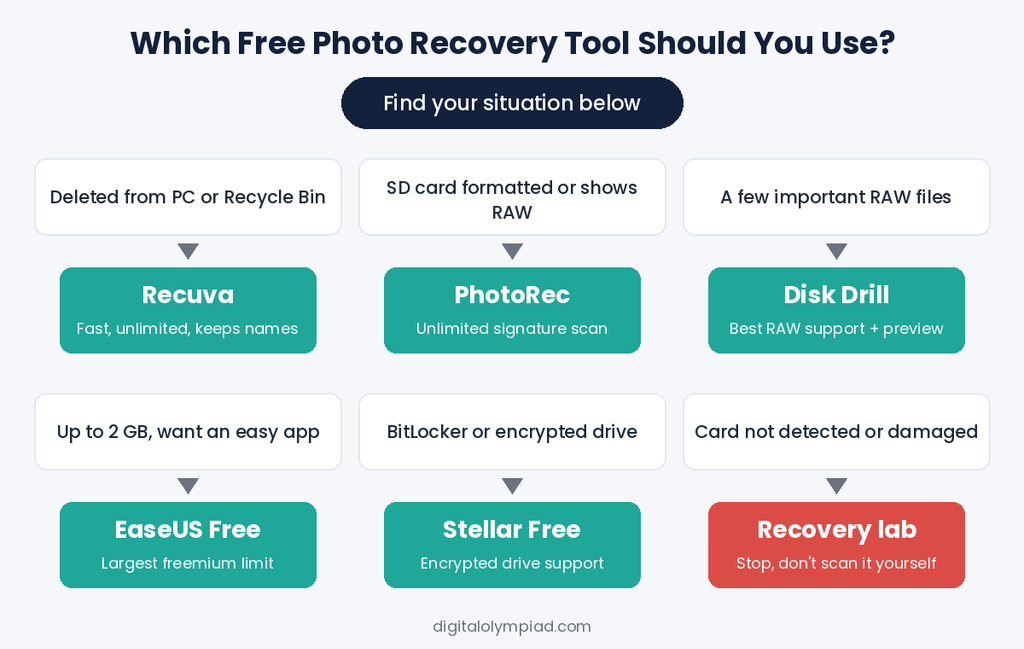
Match your situation to the right tool. This saves you from installing five programs and hoping one works.
| Your situation | Best free pick | Why |
| Deleted photos from PC or emptied Recycle Bin | Recuva | Fast, unlimited and keeps file names |
| Formatted SD card from a camera | PhotoRec | Signature scan works after formatting, with no cap |
| A few important RAW files (CR3, NEF, ARW) | Disk Drill | Best RAW support and preview; use the free scan to confirm |
| 500 MB to 2 GB of phone photos (JPG, HEIC) | EaseUS Free | Biggest freemium cap in an easy app |
| BitLocker-encrypted or RAW drive | Stellar Free | Handles both in the free edition |
| Thousands of photos and $0 budget | PhotoRec | The only tool with no limits and strong deep scanning |
| Card clicks, isn’t detected, or was physically damaged | None | Stop and contact a professional data recovery lab |
Smart combo strategy: Run a free scan in Disk Drill or EaseUS first. The preview shows which photos are still recoverable. If the list is too large for the free cap, recover them with PhotoRec at no cost.
Suggested Read: Best Online Video Repair Tools
How to Recover Deleted Photos Software Works on Windows for Free (Step by Step)
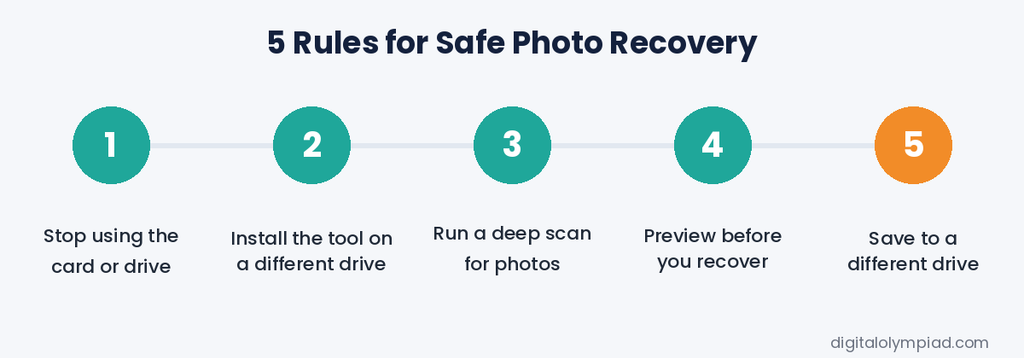
These steps work with any of the tools above.
- Check the easy places first. Look in the Recycle Bin, OneDrive’s Recycle Bin, Google Photos Trash, and Windows File History. You may not need software at all.
- Stop using the drive or card. Don’t take new photos, copy files, or install apps on it.
- Install the recovery tool on a different drive. Better yet, use a portable version (Recuva Portable or PhotoRec) from a USB stick.
- Select the drive and choose a photo scan. Pick “Pictures” or “Photos” as the file type to speed things up. If recovering from SD card – Connect the card with a card reader.
- Run a quick scan, then a deep scan. The deep scan takes longer but finds photos after formatting.
- Preview before you recover. Skip files that look grey, broken or half-loaded.
- Save to a different drive. Never recover photos to the same card or drive you are scanning. That can overwrite the very files you are trying to save.
- Open and check your photos. Then back them up in at least two places.
Tips to Boost Your Photo Recovery Success
Do this:
- Act fast. Recovery odds drop each time the drive writes new data.
- Image a failing card first. Disk Drill can create a byte-level backup. Scan the copy so a dying card doesn’t fail mid-scan.
- Try a second tool. Each program uses different scan methods. A photo one tool misses, another may find.
- Filter by file type. Scanning only for JPG, HEIC or your camera’s RAW format cuts scan time and clutter.
Avoid this:
- Running CHKDSK or “Scan and fix” on the card. It can rewrite the file system and erase traces of your photos.
- Clicking “Format disk” when Windows asks. Close the prompt and scan the card instead.
- Downloading “cracked” versions. They often carry malware. Always download from the official sites linked in this article.
- Expecting miracles from internal SSDs. Windows runs TRIM on internal SSDs, which wipes deleted data quickly. Recovery is often impossible there, while SD cards and hard drives give much better odds.
FAQs About Free Photo Recovery Software
For unlimited free recovery, PhotoRec is the best choice. For the best results and easiest experience, Disk Drill leads, but its free plan saves only 100 MB on Windows. EaseUS Free is the best middle option with up to 2 GB.
Yes. PhotoRec is fully free and open source with no caps. Recuva’s free edition also has no recovery limit. Microsoft’s Windows File Recovery is free too, but it runs only from the Command Prompt and has no preview.
Often, yes. A quick format only marks the card as empty. Use PhotoRec or the deep scan in any tool above. A full or “secure” format that overwrites the card usually makes recovery impossible. For more fixes, see our guide on how to recover data from a corrupted SD card.
Yes, when you download it from the official site. Disk Drill and PhotoRec state that they scan in read-only mode. Just never save recovered photos to the same drive you are scanning.
Final Verdict: The Best Free Photo Recovery Software in 2026
The best free photo recovery software depends on how many photos you lost and how they disappeared.
- Best overall: Disk Drill, for its RAW support, previews and recovery chance ratings
- Best truly free: PhotoRec, for unlimited recovery from formatted cards
- Best for quick deletions: Recuva, for fast, unlimited and easy recovery
- Best free limit: EaseUS Data Recovery Wizard Free, for up to 2 GB with a clean interface
- Best for encrypted and RAW drives: Stellar Data Recovery Free, for 1 GB free with BitLocker support
Start with a free scan. See what comes back. Then pick the tool that can save those photos without wasting your time or money.
Once you get your photos back, set up an automatic backup to an external drive or the cloud. Not sure which service to use? Compare these secure cloud storage alternatives. A backup is the only guaranteed way to avoid needing recovery software again.