Your GoPro battery died halfway through a ride. Your phone froze while it was saving a 4K clip. A client sent footage that only shows a spinning wheel. The file is there, it even has a size, but it won’t play.
That’s a corrupted video, and in many cases you can fix it. The hard part is picking the right tool. Online video repair services are not built for the same job. Some take 5 GB camera files, others stop at 50 MB. Some need a sample clip. One won’t let you download anything until you pay.
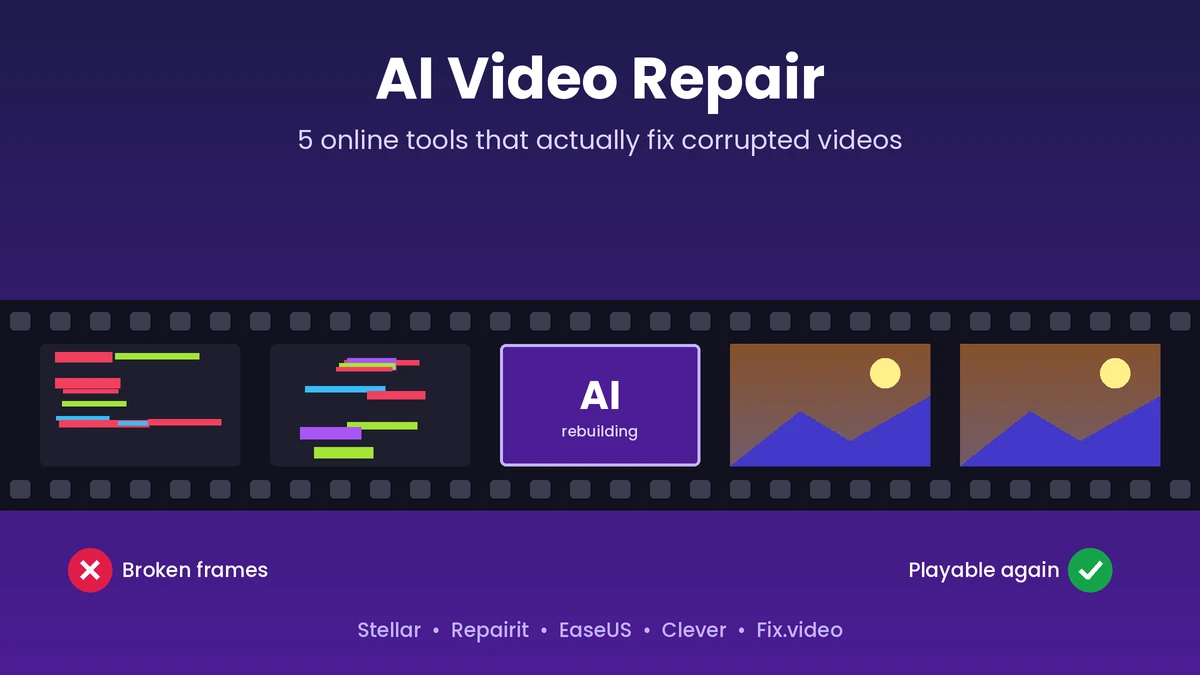
We went through the official pages of five popular AI video repair tools and pulled out what matters: what each one fixes, how big a file it accepts, and what’s actually free.
The short version
Best overall: Stellar Online Video Repair. Most formats, 5 GB uploads, sample-file repair and expert backup.
Best free option for big MP4/MOV files: Clever Online Video Repair, if you have a sample clip.
Best for repairing photos and documents too: Wondershare Repairit Online.
Best for small clips in unusual formats: EaseUS Online Video Repair.
Best “see it before you pay” option: Fix.video.
First, Check That You Need Repair, Not Recovery
People mix these up all the time, and it costs them hours. A video repair tool only works on a file you still have. Here’s how to tell which problem you’re dealing with:
- You need repair if the file exists but won’t open, freezes, stutters, shows a black screen or has no sound.
- You need recovery if the file is gone because you deleted it, formatted the card or the drive stopped showing up.
- You need enhancement if the video plays fine but looks blurry, shaky or faded.
If your file is missing, recover it first with data recovery software. Then, if the recovered file still won’t play, bring in a repair tool.
Try These Free Checks Before You Upload Anything
Sometimes the video isn’t broken at all. Spend two minutes on these first:
- Open it in VLC. VLC plays many codecs that default players on Windows and Mac don’t support. If it plays there, you have a codec problem, not a corrupted file.
- Copy it again from the source. If you moved the file from a card or phone, the copy itself may be the damaged part. Try a fresh copy with a different cable or card reader.
- Check the file size. A file that shows 0 KB holds no video data, so there’s nothing for any tool to rebuild.
Still stuck? Time for an online video repair tool.
How AI Video Repair Works (and Why a Sample Clip Helps)
Older repair programs did one narrow job, such as rebuilding the index of an AVI file. Newer AI-based tools look at the whole file. They learn how specific cameras and codecs write their videos, spot what’s missing and rebuild it.
The most common damage is a missing or broken header. That’s the part of the file that tells your player how to read everything else. When a camera loses power mid-recording, it often never gets the chance to write it.
This is where a sample video comes in. You upload a healthy clip recorded on the same camera with the same settings. The AI reads its structure and uses it as a template for the damaged file.
Tip: if your camera still works, record a 10-second test clip with the exact same resolution and frame rate as the broken video. That’s your sample.
The 5 Best AI Video Repair Tools Online
We judged each tool on repair power, format support, upload limits, free access, privacy and how easy it is to use. All details come from each tool’s official site as of October 2026.
1. Stellar Online Video Repair (Best Overall)
Website: repair.stellarinfo.com
Stellar has built data recovery software since 1993, and its browser-based tool covers more ground than any other option on this list. It accepts 19+ formats, takes files up to 5 GB and lets you add a sample video for heavily damaged footage.
It also handles a wide mix of problems: videos that won’t play, glitches, blur caused by corruption, slow or laggy playback, flicker and broken audio. According to Stellar, most repairs finish within 15 minutes.
What sets it apart
- Pro and camera formats: MP4, MOV, AVI, MKV, MTS, AVCHD, HEVC, WEBM, Sony RSV and more
- Camera support: footage from Canon, Sony, Nikon, GoPro, DJI drones, CCTV systems and phones
- Sample-file repair to rebuild badly damaged videos
- Original quality kept: resolution, frame rate and bit rate don’t change
- Expert backup: if Premium can’t fix a file online, Stellar’s team can try a manual repair in its lab after you confirm
- Privacy: SSL-encrypted uploads, read-only processing and automatic deletion after repair
Plans
- Free: 1 video up to 100 MB, no card needed, download open for 24 hours
- Premium: $9.99/month for 10 videos up to 5 GB each, downloads kept for 48 hours
- Desktop (Stellar Repair for Video): $49.99/year for unlimited files with no size cap, processed on your own computer
| What we like | Watch out for |
| Biggest format list among the five5 GB uploads cover most 4K and drone clipsSample-file repair plus expert lab backupClear deletion and privacy rules | The free plan only covers one small videoLarge uploads take time on slow internet |
Pick it if: your video won’t play and you want the best chance of getting it back, especially with large camera or drone files.
2. Wondershare Repairit Online
Website: repairit.wondershare.com
Repairit Online is part of a larger toolkit that also repairs photos, documents and audio. If you’re dealing with a damaged SD card full of mixed files, that’s handy.
The video tool supports MP4, MOV, 3GP, M2TS, MKV, MTS, AVI, FLV, MXF and M4V. Wondershare also offers an Advanced Repair mode that uses a sample video to rebuild files that fail the quick repair.
Key details
- Free: 1 video up to 50 MB
- Premium: no limit on the number of videos, up to 3 GB per file (paid monthly or yearly plans)
- Privacy: 2048-bit SSL connections, and Wondershare says it deletes files within 3 hours after repair
- Desktop version: no size limit and 20+ formats for bigger jobs
| What we like | Watch out for |
| Repairs photos, documents and audio as wellAdvanced Repair with a sample clipShort 3-hour deletion window | 50 MB free limit is tight for most camera clipsPremium prices sit on a separate page, so check before you start |
Pick it if: you need to fix videos alongside photos or documents from the same damaged device.
3. EaseUS Online Video Repair
Website: repair.easeus.com
EaseUS stands out for one reason: its online format list is huge. Besides the usual MP4 and MOV, it lists pro and niche formats such as Blackmagic BRAW, Insta360 INSV, Sony RSV, MXF, RMVB and DV.
The trade-off is size. The online tool accepts files under 100 MB, and its advanced repair options (including sample-file repair) only come with the paid EaseUS Fixo desktop app. EaseUS says the average online repair takes about a minute.
Key details
- Fixes unplayable files, stutter, flicker, missing sound, sync problems and broken metadata
- Shows a preview of the repaired video before you download
- Free for a few videos, with paid upgrades for more files or larger sizes
- Processes files over an encrypted connection
| What we like | Watch out for |
| Long list of supported formats, including pro camera filesQuick results on small clipsPreview before download | Online uploads capped under 100 MBNo sample-file repair in the browser |
Pick it if: you have a short clip in an unusual format, like an Insta360 or BRAW file.
4. Clever Online Video Repair
Website: repair.cleverfiles.com
Clever Online Video Repair comes from CleverFiles, the team behind Disk Drill. It’s free and takes files up to 5 GB, which makes it the most generous free option here.
There’s one catch: you must upload a working sample video along with the broken one. The tool specializes in truncated files, the kind you get when a camera shuts off mid-recording and never finishes writing the file. It doesn’t re-encode your video, so quality stays the same.
Key details
- Free, with a 5 GB limit for both the broken file and the sample
- Supports MP4, MOV, M4V, 3GP, 3G2, F4V, QT, DAT and related formats
- Works well in mobile browsers
- CleverFiles says the service is free while it gathers feedback, so this could change
| What we like | Watch out for |
| Free with a large 5 GB limitGreat for recordings cut off by a dead batteryNo quality loss | No sample video, no repairMostly limited to MP4/MOV-style formatsFree status may not last |
Pick it if: you have a large MP4 or MOV from a camera that lost power, and you can record a sample clip.
5. Fix.video
Website: fix.video
Fix.video focuses on damaged MP4 and MOV files from DJI drones, GoPro, Sony, Canon and Nikon cameras. You upload your file, look at a free preview of the result and only then decide whether to pay.
You can’t download a full repaired file for free. The price depends on your file, and you see it before checking out. User reviews are mixed: many people say it saved footage other tools couldn’t, while others weren’t happy with the result after paying. Study that preview carefully.
| What we like | Watch out for |
| Free preview before any paymentPay per file, no subscriptionBuilt around common camera and drone formats | No free downloadMostly MP4 and MOVMixed user reviews |
Pick it if: you need one file fixed, don’t want a subscription and are happy to pay once the preview looks right.
Best AI Video Repair Tools Compared
| Tool | Free plan | Max upload | Formats online | Sample file | Best for |
| Stellar | 1 video, 100 MB | 5 GB | 19+ incl. RSV, HEVC, MTS | Yes | Most corrupted videos |
| Repairit | 1 video, 50 MB | 3 GB | 10+ incl. MKV, MXF | Yes | Mixed media repair |
| EaseUS | A few small videos | Under 100 MB | 25+ incl. BRAW, INSV | Desktop only | Small, unusual files |
| Clever | Free | 5 GB | MP4, MOV family | Required | Cut-off recordings |
| Fix.video | Preview only | Not stated | MP4, MOV | Not stated | One-off paid fixes |
File Size Limits: The Detail Most People Miss
Free plans look similar until you check the size of your actual file. Here’s a quick reality check: a one-minute 4K clip recorded at 100 Mbps weighs about 750 MB. That already rules out most free tiers.
- Phone clips under a minute: most free plans will do
- 4K, drone or action camera footage: you need Stellar Premium, Repairit Premium or Clever
- Long recordings or batches: use desktop software such as Stellar Repair for Video, which has no size limit
How to Repair a Corrupted Video Online: Step by Step
The exact buttons differ, but the process is nearly the same everywhere. Here’s how it looks with Stellar:
- Make a copy of the broken file and keep the original somewhere safe.
- Record or find a sample clip from the same camera with matching settings.
- Open Stellar Online Video Repair, sign in and upload the corrupted video.
- Add the sample video if the damage looks serious.
- Start the repair and wait. Most files finish within minutes.
- Preview the result, checking the start, middle and end, plus the audio.
- Download the fixed file before the download window closes.
When Online Video Repair Won’t Work
It’s better to know the limits up front. Online repair struggles in these cases:
- The frames are gone. If the actual picture data was overwritten, no tool can invent it back.
- The file is 0 KB or only a few kilobytes.
- Ransomware encrypted it. That’s a security problem, not a repair job.
- The memory card is failing. Stop using it. Copy what you can, or talk to a professional recovery service.
- The file is too large for any online plan. Switch to desktop software.
Bottom Line
Most corrupted videos aren’t lost. They’re missing a few pieces that a good AI video repair tool can rebuild.
For the best overall chance, start with Stellar Online Video Repair. It handles the most formats, the biggest files and the worst damage, and you can test it free. If you have a large MP4 or MOV and a sample clip, Clever is a strong free backup. Repairit, EaseUS and Fix.video each fill a smaller gap, so pick them when your situation matches.
Frequently Asked Questions
Which AI video repair tool is best for GoPro or drone footage?
Stellar Online Video Repair is the safest bet. It supports GoPro and DJI files, takes uploads up to 5 GB and uses sample-file repair. Clever Online Video Repair is a good free alternative for MP4 and MOV files if you have a sample clip.
Is there a completely free online video repair tool?
Clever Online Video Repair is free at the time of writing, though it needs a sample video. Stellar repairs one video up to 100 MB for free, and Repairit repairs one up to 50 MB.
Do I always need a sample video?
No. Minor damage often gets fixed without one. For severe corruption, especially a missing header, a sample clip improves your odds a lot. Clever requires one every time.
Can I repair a video on my phone?
Yes. These tools run in a mobile browser, so you don’t need an app. Stellar works on iPhone and Android without installing anything, and Clever is built to work on smartphones.
How long do these sites keep my video?
Stellar deletes repaired files after 24 hours on the free plan and 48 hours on Premium. Repairit says it deletes data within 3 hours after repair. For confidential footage, use desktop software that works offline.
Can AI video repair fix a blurry video?
It can fix blur caused by file corruption. Stellar, for example, lists blurry videos among the problems it repairs. If the video was simply shot out of focus or in low resolution, you need an AI enhancer instead.