I put off making a QR code for our shop flyers for way too long because I assumed I’d need to pay for some generator site. Turns out the Adobe Express QR code generator does it for free, lets you add your logo, and the codes don’t expire.
That said, my first attempt didn’t scan. It looked great on screen and then my phone just stared at the printed copy. So this is less of a feature tour and more of what I wish someone had told me before I printed 200 flyers.
Are QR Codes Still Worth It?
Short answer, yes. Restaurants started using them during the pandemic and they never really went away. Now they’re on tickets, receipts, packaging, posters at the bus stop.
The numbers back that up. Statista counted about 99.5 million people in the U.S. scanning a QR code with their phone in 2025, and eMarketer thinks it’ll be around 102.6 million this year, which works out to roughly a third of the country. Bitly also found 94% of marketers used them more last year. Nobody needs a lesson on how to scan anymore.
What people do need is a code that works the first time they point their camera at it. Most people won’t try twice.
What Is the Adobe Express QR Code Generator?
It’s a small feature tucked inside Adobe Express, the browser version of Adobe’s design tools. You don’t install anything. There’s a standalone page where you just paste a link and download the code, and you can also add a code straight into a flyer or poster from inside the editor. Same code either way. No watermark, no scan limit, and the free plan covers it. You may get asked to sign in with a free Adobe account to save things.
Making the Code
I used the standalone page for this. The whole thing takes a couple of minutes.
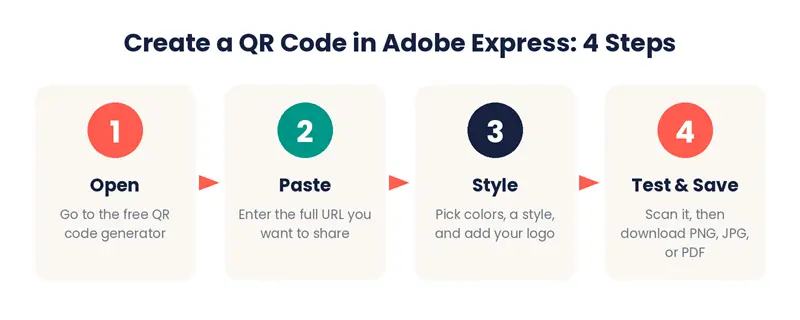
Open, paste, style, test, save.
Go to the Adobe Express QR code generator page, click Generate QR code, and paste your link.
Type the full address, https:// and all, and read it back before you move on. This sounds obvious. It’s also the one mistake you can’t undo, since the link is locked into the code once it’s made. After that you pick a pattern and colors (stick with something dark on a light background), and drop in your logo if you have a small transparent PNG of it. Then hold your phone up to the preview on your monitor. If it opens the right page, download it as a PNG for anything online or a PDF if it’s going to print.
Adding It to a Design You’re Already Working On
If you’ve got a flyer open in the editor, search “QR code” in the left panel, paste your link, and it lands on the canvas. One thing that caught me out: resize it from a corner. If you drag a side handle it squishes the pattern and some phones won’t read it. Leave a bit of empty space around it too, then scan it off your screen before exporting.
Static vs. Dynamic (This Matters More Than It Sounds)
Adobe only makes static codes. Paid QR services sell dynamic ones. The difference:
| Feature | Static (Adobe Express) | Dynamic (paid tools) |
| Cost | Free | Usually a monthly fee |
| Expiry | Never expires | Can stop working if you cancel |
| Change the link later | No | Yes |
| Built-in scan tracking | No | Yes |
| Best for | Websites, profiles, permanent pages | Campaigns that change often |
Since you can’t change a static code, I’d point it at a page you control instead of a file. Link to your menu page rather than the menu PDF, your events page rather than this month’s sign-up form. When things change, you edit the page and the printed code keeps working.
Tracking Scans Without Paying
Adobe doesn’t count scans. What I did instead was add UTM tags to the link before making the code, so Google Analytics shows those visits separately.
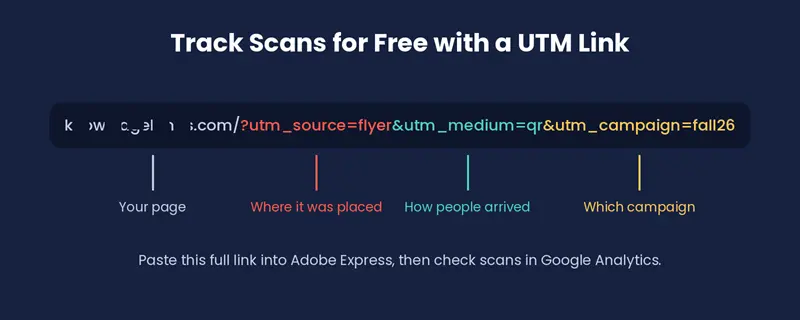
Each part of the link tells you something about where the scan came from.
You only need three: utm_source for where the code is (flyer, menu, window), utm_medium set to “qr”, and utm_campaign for the promo name. I made a slightly different link for each placement, and it was honestly a little surprising which ones got scanned. The table cards beat the posters by a lot.
What It Can’t Do
It only does web links. No Wi-Fi codes, no vCards, no SMS. You also can’t export an SVG, so for large prints use the PDF to keep the edges sharp. If you want a contact card code, a workaround is to put your details on a simple web page and link to that.
Getting It to Actually Scan
Every scanning problem I ran into was my own design choice, not the tool.
Contrast
My first one was light gray on white because it matched the flyer. Bad idea. Phones want a dark code on a light background, and in-between colors are where it falls apart.
High contrast and an unstretched, square shape make all the difference.
Size
Don’t print it smaller than 2 x 2 cm (about 0.8 inch). For signs, a rough guide is the 10:1 rule: the code should be about a tenth of the distance people scan from, so around 10 cm if they’re standing a meter back.
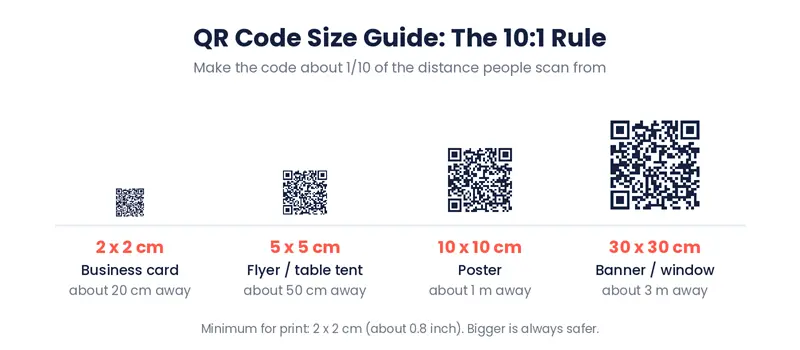
The farther away people stand, the bigger the code needs to be.
A Few Smaller Things
Keep a blank margin around the code, about four of its little squares wide, and don’t let text touch it. Keep the logo small. And put a few words next to it saying what people get, like “Scan for the menu.” A bare code is easy to ignore. Last thing: test the printed proof, on both an iPhone and an Android, from wherever people will actually be standing.
Is It Worth Using?
For a free tool, I think so. If you need a branded code for a menu, a flyer, or a business card and don’t want another monthly subscription, the Adobe Express QR code generator does the job. Just link it to a page you can edit and scan it before you print.